Launcher

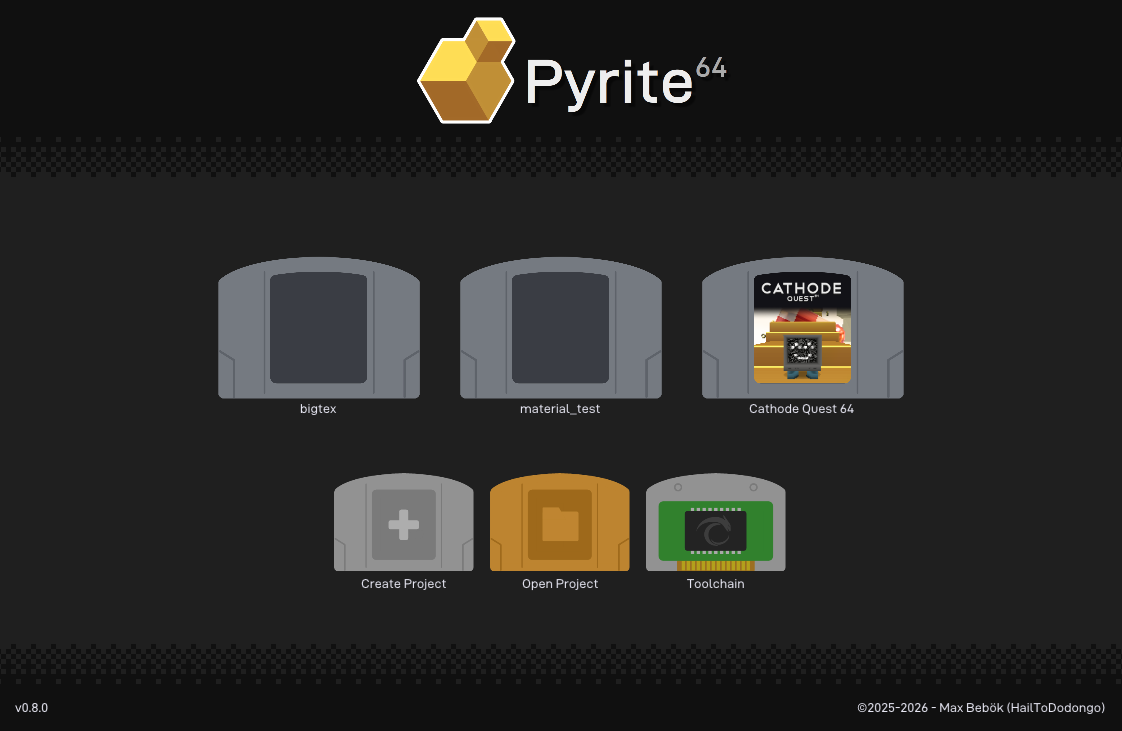
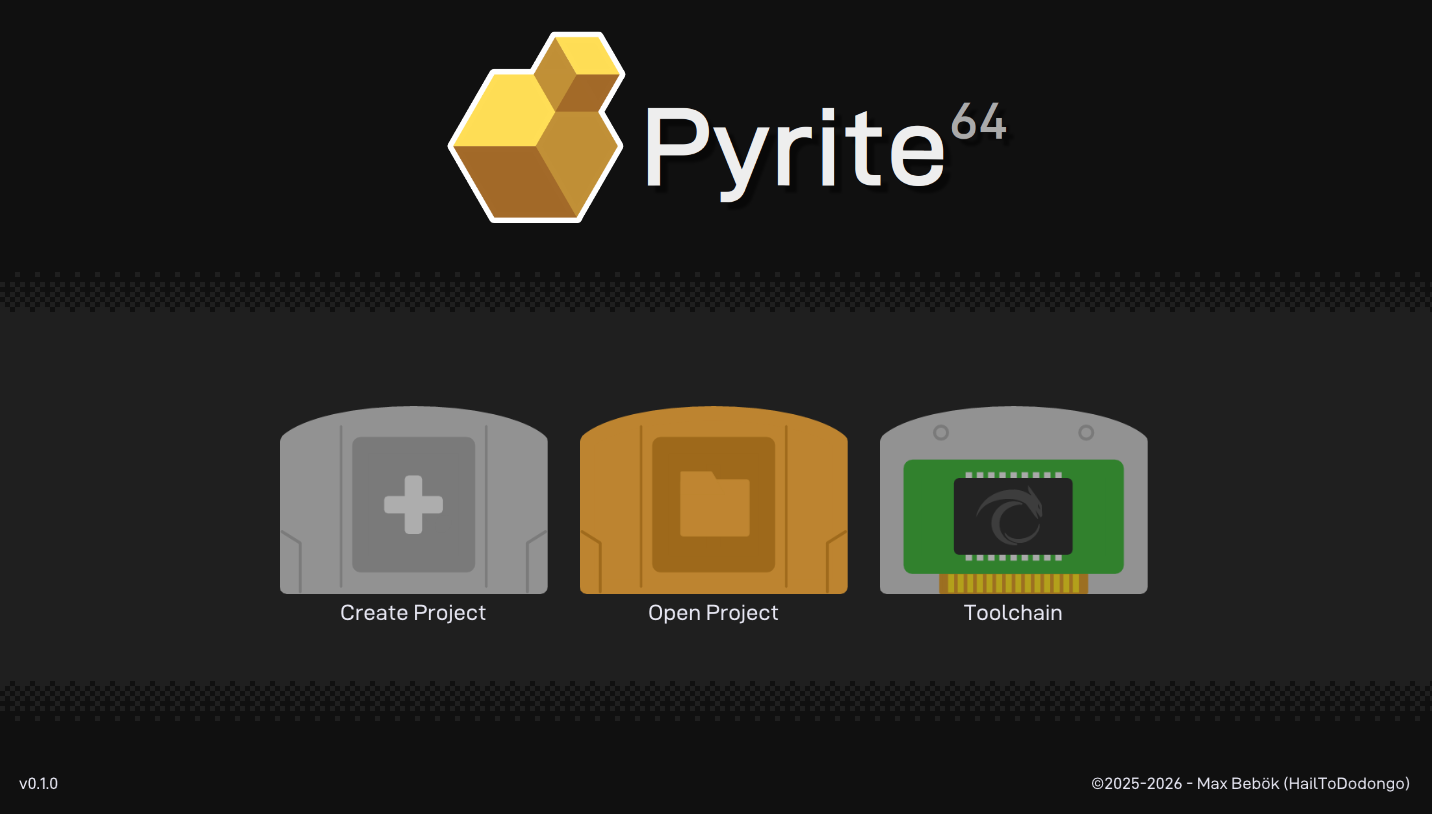
When opening Pyrite64, you will be greeted with the launcher.
If this is your first time opening the editor, it may only show the “Toolchain” option.
../../_images/editor01.png

Creating a new Project

This lets you create a new project,
which is a directory of a self-contained game the editor lets you work on.
After doing so, it is a highly recommended to create a git repository as well.
By default, a .gitignore is included too and all visible files can be checked in.
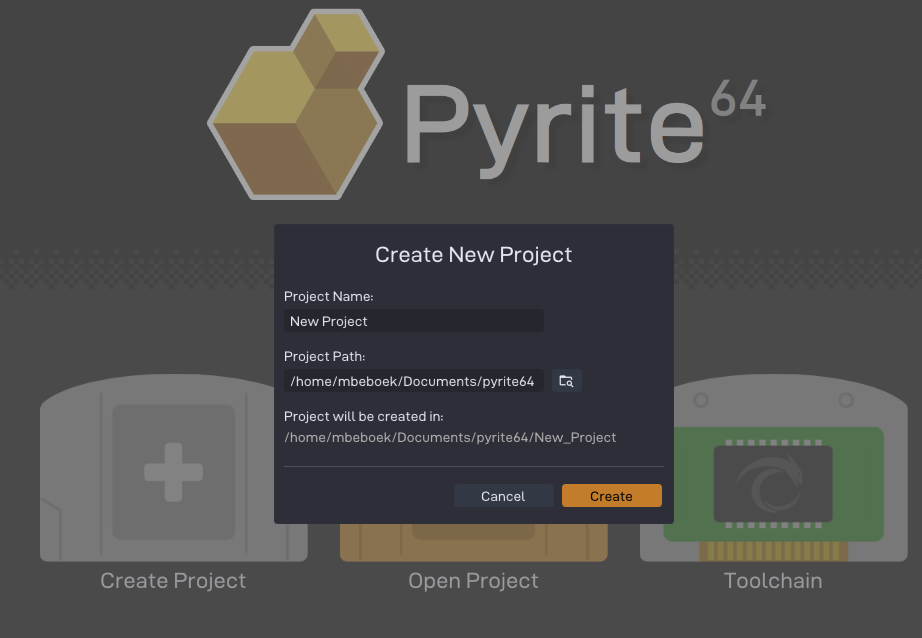
../../_images/launcher_create_project.png

Note

Due to technical issues with MSYS2/Makefiles, spaces in project paths are not allowed.

Opening a Project

Each projects directory includes a .p64proj file that holds the project settings.
To open an existing project, click on “Open Project” and select the .p64proj file.
Since it has a unique file extension, you can also associate it with the editor in your OS to open it by default when double-clicking on it.
Bundled with the editor is also an example project called “Cathode Quest 64” (N64Brew 2025 GameJam entry).
This is located in n64/examples/jam25, and is going to be updated over time as the editor grows.
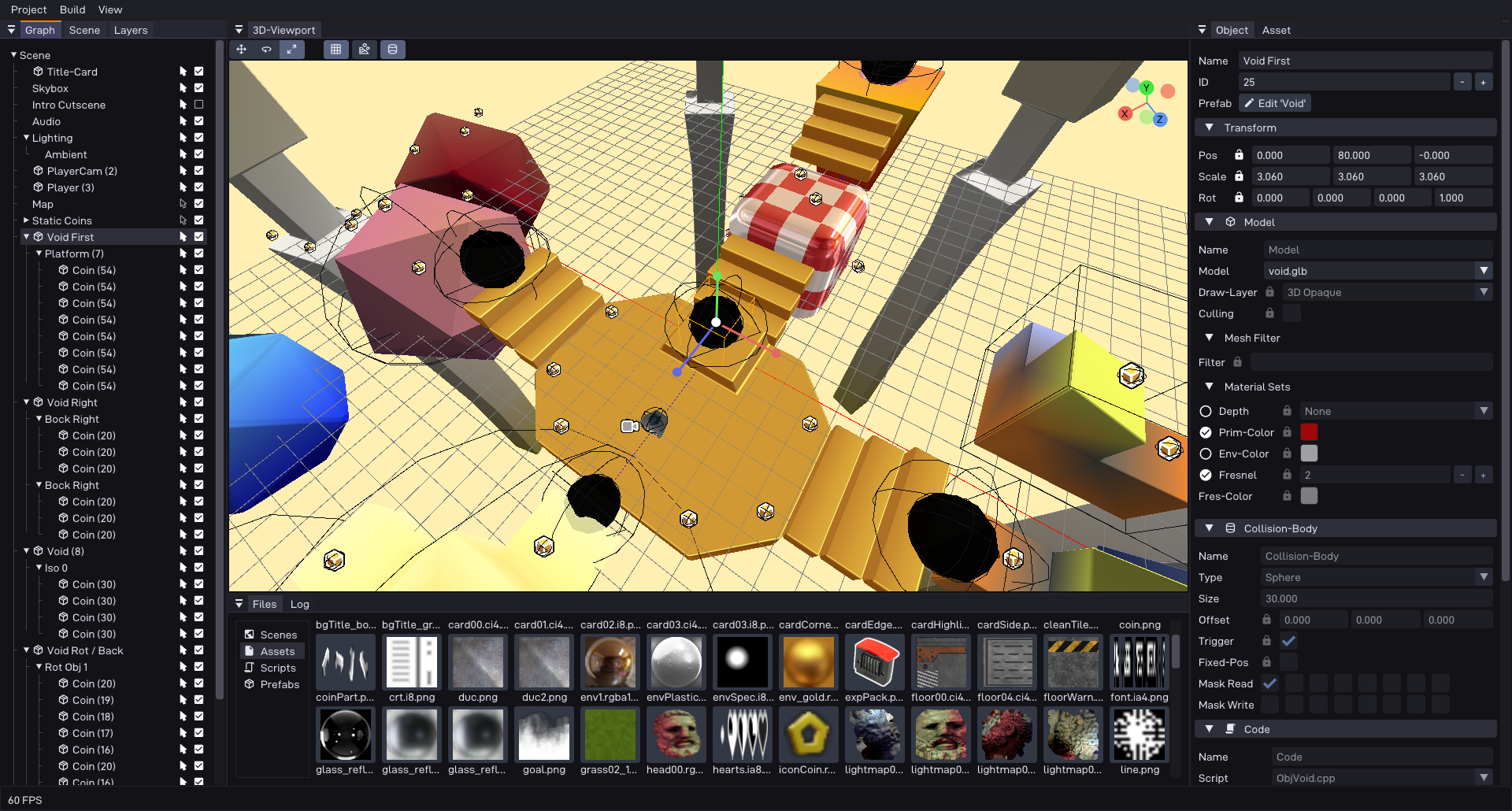
../../_images/editor00.png

Recent Projects

../../_images/launcher_recent.png
Once you have opened a project at least once, it appears in the recent-projects grid
at the bottom of the launcher, shown as a small cartridge card with the project name below it.
Clicking a card opens that project directly, without having to browse for the .p64proj file again.

Note

If a project has moved or been deleted, opening its card will fail with an error. The entry stays in the list so you can still see where it used to be.

Setting a Card Image

By default a card shows a blank cartridge. You can give a project its own artwork,
which is then shown on the cartridge label in the recent-projects grid.
The image is taken from the project’s ROM metadata. To set it:
  1. Open the project, then go to Project > Settings in the menu bar.

  2. Switch to the Metadata section and enable Embed Metadata.

  3. Under Cart Art, pick an image for Front. If no cart art is set, the Front image from Box Art is used as a fallback instead.

Note

This is the same image used for the ROM’s embedded metadata, so it doubles as the cartridge art seen by tools and supported flashcarts that read it.

Toolchain Manager

This lets you manage the Libdragon and tiny3d toolchains,
which are required to build and run games.
Due to a rather large filesize and the need to update them independently,
they are not bundled with Pyrite64.
Instead you can use the toolchain manager to validate an install.
Or depending on OS, even have it automatically install them for you.

On windows, you have the option to either install or update the toolchain with a single click:
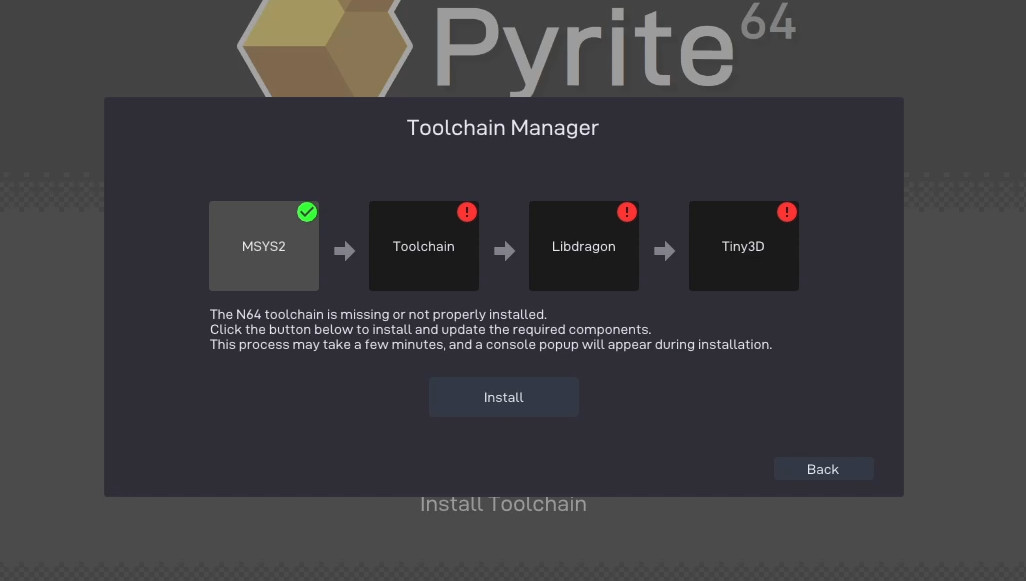
../../_images/launcher_toolchain_install.jpg

On linux or MacOS, it instead only validates and links relevant documentation to follow:
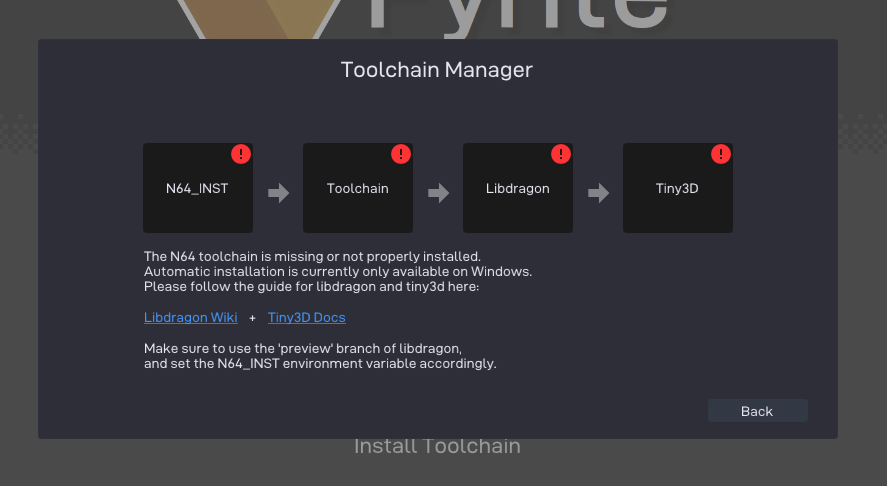
../../_images/launcher_toolchain_install_linux.png