Installation
Installing Pyrite64
Pyrite64 comes as a self-contained installation for the editor and engine.
The only thing external is the N64-SDK, which depending on the platform,
can be auto-installed for you by the editor.
Below are instructions to get Pyrite64 running on each supported platform:
Windows & Linux
Download the latest stable release from:
Or for the latest development build from the GitHub Actions:
(Alternatively, you can build the editor from source.)
Extract the ZIP file on your PC in any directory you want.
Inside, launch
pyrite64.exe (or pyrite64 on Linux) to start the editor.On the first start you will see a message that it could not find any N64 toolchain.
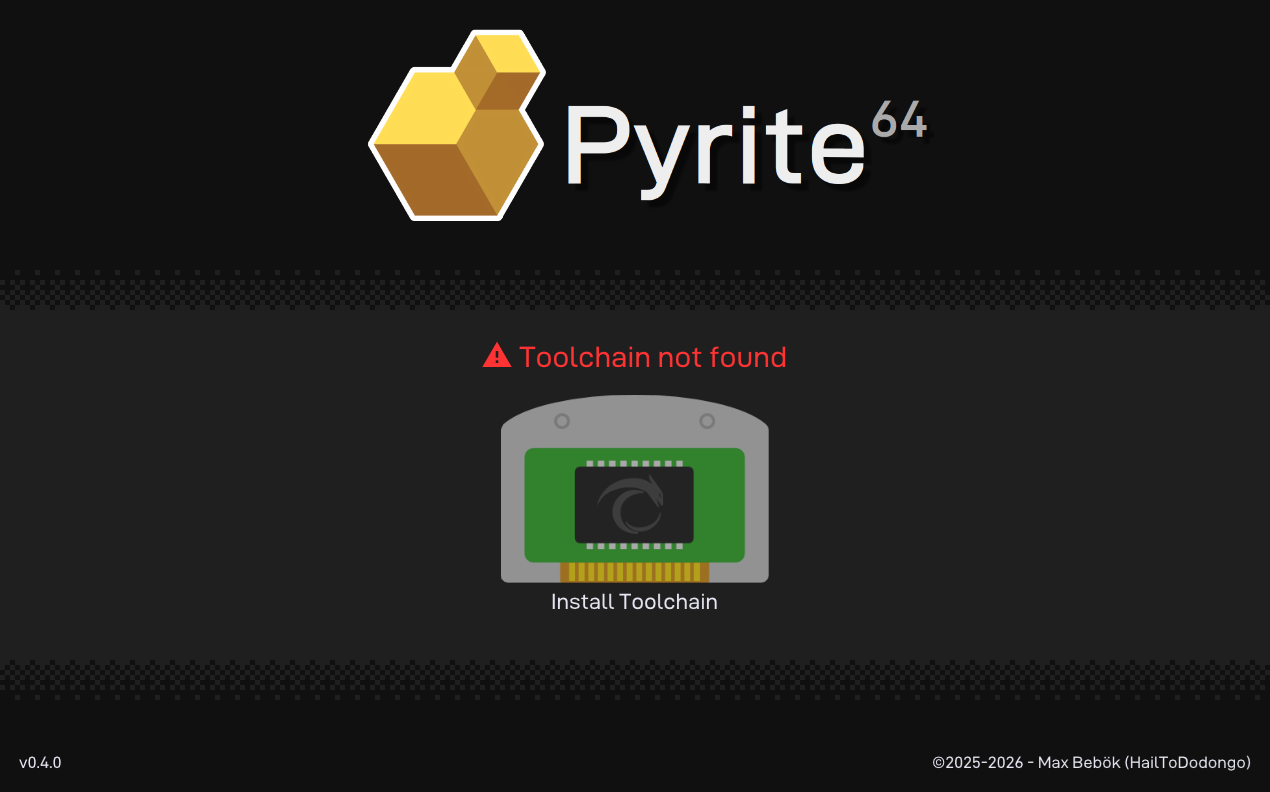
By clicking on the “Install Toolchain” button you can open the toolchain manager.
This will walk you through the process of installing it, most of which is fully automated.
Note
If you have trouble with broken zip files or certificate errors during the toolchain installation,
consider disabling your anti-virus for msys2.
This is a known issue, e.g. https://github.com/msys2/MSYS2-packages/issues/5476#issuecomment-3065079993
Next, you can follow the Launcher section to get started with the editor.
As a test if everything has installed correctly, you can create a new project.
Simply click on “Create Project” and choose a name.
Once in the editor, press
F12 to build the default project.This should then succeed and produce a
.z64 ROM in the project directory.MacOS
Mac support is still work in progress, and currently only available via building from source.