Object-Scripts
Now we will focus on how to create a script for an object.
Creating Scripts
Creating a script is very simple, in the “Files” tab under “Scripts” you can see all existing scripts.
If you click the “+” icon, you can add a new one after entering a file name.
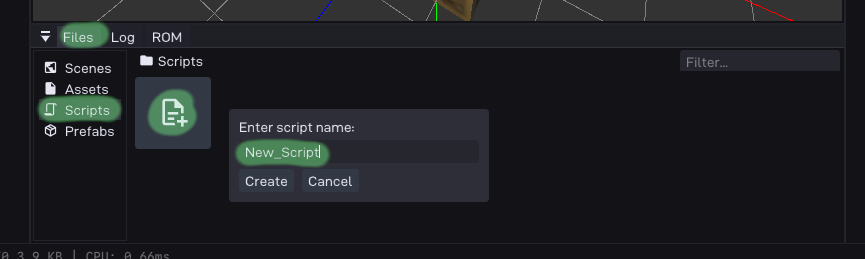
Once done, the editor creates it in the src/user/ directory of your project,
and now lists it in the editor.
Pyrite64 has no builtin code editor, so an external one (e.g. VSCode, CLion) is required.
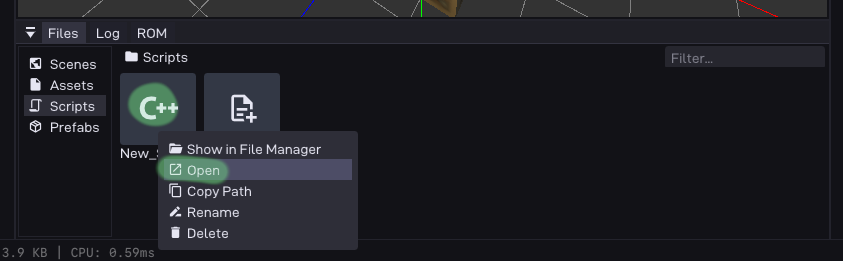
Either navigate to the directory, or right-click on the entry in the editor to open it:
Since scripts are internally identified by a UUID stored in the file itself,
you are free to move or rename files at any point.
Using Scripts
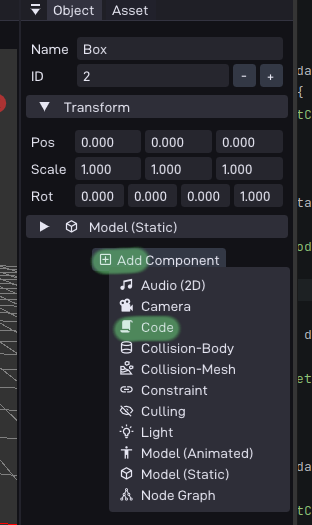
Select the object you want to attach the script to,
and add a new “Code” component to it:
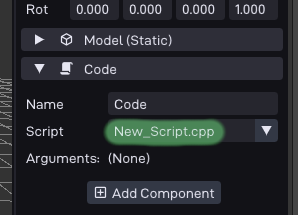
Once done, you can now choose your script in the select-box:
Alternatively, drag and drop the script from the list view into the select-box.
You can add as many different scripts to an object as you want.
This is useful to compose behaviors by having simple scripts that can be combined.
Using the same script on multiple objects is of course also possible.
This happens naturally when you, for example, place multiple instances of the same object.
Script Contents
Files have the following structure:
#include "script/userScript.h"
#include "scene/sceneManager.h"

namespace P64::Script::C4640C925988CA72
{
  P64_DATA(
    // data for the script instance
  );

  // one or more functions will follow...
}
All object scripts are put in the P64::Script namespace, with their own UUID as the last name.
The UUID (here C4640C925988CA72) is generated when the script is created,
and is used internally to identify it.
Renaming the file is therefore allowed, as long as the UUID is not touched.
Inside the namespace are two sections: a data block, and functions.
Data Block
P64_DATA is a macro that will expand into a struct definition,
you can put any variables you want in there, or keep it empty.
For example:
P64_DATA(
  fm_vec3_t direction;
  float speed;
  int status;
);
Warning:
Complex data types in P64_DATA should be avoided, constructors / destructors are not called automatically!
At runtime this struct is then instantiated for each object that has that script.
Note ths this happens automatically, you don’t need to manage this memory yourself.
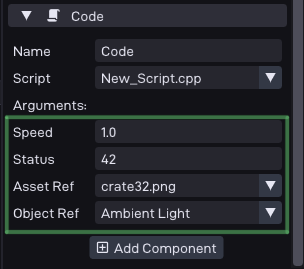
Variables can also be exposed to the editor to allow setting an initial value.
By default this is disabled, and you need to put a P64::Name attribute on members:
P64_DATA(
  [[P64::Name("Speed")]]
  float speed;
  [[P64::Name("Some Other Value")]]
  int status;

  int noExposed;
);
Please make sure to put all exposed variables at the top of the block
without any non-exposed variables in between.
Ideally, also avoid any gaps in the memory layout to avoid misalignment issues:
P64_DATA(
  [[P64::Name("Status")]]
  uint8_t status;
  // BAD: has 3 bytes of hidden alignment!
  [[P64::Name("Speed")]]
  float speed;
);
While you can use any type you want for variables,
exposed ones are limited to a few known types:
Integers:
uint8_t,int8_t,uint16_t,int16_t,uint32_t,int32_tFloat:
floatVectors:
fm_vec3_t,fm_quat_tReferences:
AssetRef<sprite_t>,ObjectRef
The reference types allow you to plug in assets or objects from the editor.
Vectors are edited as their individual components,
quaternions as their raw x,y,z,w values.
Default values can be set with a regular initializer, e.g. fm_vec3_t dir = {0, 1, 0};.
A quaternion without a default value starts as the identity rotation.
In the editor, you can now see the values showing up:
Bitmask Attribute
For unsigned integer members (uint8_t, uint16_t, uint32_t) you can add a
P64::Bitmask attribute to edit them as a set of named flags instead of a plain number.
The attribute takes a comma-separated list of bit=name entries,
where bit is the bit index (0 being the least significant bit):
P64_DATA(
  [[P64::Name("Elements"), P64::Bitmask("0=Fire, 1=Water, 2=Earth")]]
  uint8_t elementFlags;
);
In the editor this shows up as a select-box where you can toggle each named bit on or off.
The resulting value is the combined bitmask, so for the example above selecting
“Fire” and “Earth” stores 0b101 (5).
You don’t need to name every bit, only the ones you want to expose.
At runtime the member is just a regular integer, so you can test the bits as usual:
if(data->elementFlags & (1 << 0)) { /* Fire is set */ }
Since a script is just a regular C++ file, it is also possible to have global memory.
This can be useful to share data global across all instances of a script.
The recommended way to do this is by using an anonymous namespace.
Just be aware that nothing in there can be exposed to the editor,
and any memory must be manually managed by you.
#include "script/userScript.h"
#include "scene/sceneManager.h"

// Global data shared across all instances:
namespace
{
  float someGlobalValue{42.0f};
}

namespace P64::Script::C4640C925988CA72
{
  ...
}
Functions
The other section is a set of functions you can provide.
A newly created script will contain all of them by default,
and you can remove the ones you do not need.
All functions have at least two common arguments:
Object& obj- The object the script is attached toData *data- Data pointer for this instance, structure as defined inP64_DATA
Currently allowed functions are:
Init
void init(Object& obj, Data *data)
Initialization function, called once when the object spawns.
At this point data has already been initialized with the values from the editor,
or for non-exposed variables set to zero.
If you do have non-trivial data types as variables, please also manually construct them here.
Destroy
void destroy(Object& obj, Data *data)
Opposite of init, called once when the object is destroyed.
This is the place to manually free any memory you may have allocated in init.
If you do have non-trivial data types as variables, please also manually destruct them here.
Accessing other components of the object is not safe, as they might have been destroyed already.
The object itself is still valid however, this can be useful to e.g. send an event to other objects.
Update
void update(Object& obj, Data *data, float deltaTime)
Called once per frame, before starting to draw anything.
This is the place to put all your logic in, for example moving the object,
interacting with other objects, accessing other components, etc.
To help with frame-rate independent movement, deltaTime is provided as an argument.
This should be multiplied with any change in transformation.
For example, here is a function that moves an object at a constant speed:
void update(Object& obj, Data *data, float deltaTime)
{
  constexpr fm_vec3_t dir{0.0f, 0.0f, 1.0f};
  obj.pos += dir * (deltaTime * data->speed);
}
Or one that rotates it around an axis:
void update(Object& obj, Data *data, float deltaTime)
{
  constexpr fm_vec3_t rotAxis{0.0f, 0.5f, 0.2f};
  fm_quat_rotate(&obj.rot, &obj.rot, &rotAxis, deltaTime * ROT_SPEED);
  fm_quat_norm(&obj.rot, &obj.rot);
}
Fixed Update
void fixedUpdate(Object& obj, Data *data, float fixedDeltaTime)
Called once per collision scene step, before collision detection and physics response.
This is the place to put your logic that interacts with rigidbodies and colliders,
as well as code that applies forces to bodies.
It is also the recommended place to perform raycasts into the collision scene.
There is a parameter fixedDeltaTime provided as an argument.
This is the fixed Physics Step time mostly detached from the frame time.
This is mostly fixed but may be different between scenes depending on the scenes Physics Tickrate setting.
A lower Physics Tickrate may improve performance but at the same time reduces simulation accuracy.
Choose according to your games needs.
For example, a fixed Update function that applies an acceleration at a specific point in space to a rigidbody:
void fixedUpdate(Object& obj, Data *data, float fixedDeltaTime)
{
  constexpr float ACCELERATION = 1000.0f;
  fm_vec3_t localForward = obj.rot * VEC3_FORWARD;
  //choose point slightly unter rigidbodies center for more realistic effect
  fm_vec3_t applyAtPoint = obj.pos - (fm_vec3_t){0.0f, 5.0f, 0.0f};
  data->carRigidBody->applyForceAtPoint(localForward * data->moveInput * ACCELERATION, applyAtPoint);
}
Or another example that performs a raycast and uses the result to apply a spring force to a rigidbody:
void fixedUpdate(Object &obj, Data *data, float fixedDeltaTime)
{
  Coll::CollisionScene *collisionScene = Coll::collisionSceneGetInstance();
  Coll::RaycastHit hit;
  float maxLength = data->RestLength + data->SpringTravel;

  fm_vec3_t localUp = obj.rot * VEC3_UP;
  fm_vec3_t localDown = -localUp;
  data->wheelIsGroundedFlags[i] = 1;

  Raycast ray = Coll::Raycast::create(data->ConnectionPoint, localDown, maxLength, Coll::RaycastColliderTypeFlags::MESH_COLLIDERS, false, 0xff);
  if (collisionScene->raycast(ray, hit))
  {
    float currentSpringLength = hit.distance - data->WheelRadius;
    float springCompression = (data->RestLength - currentSpringLength) / data->SpringTravel;
    float springForce = springCompression * data->SpringStiffness;
    data->carRigidBody->applyForceAtPoint(localUp * springForce, data->ConnectionPoint);
  }
}
Draw
void draw(Object& obj, Data *data, float deltaTime)
Called once per frame and once per active camera.
Here you can put custom drawing logic, most commonly any 2D draws.
Any builtin mesh-components attached to an object draw themselves automatically,
so you don’t need to do anything for that here.
If you have a culling-component attached, then this function may not always be called.
Similarly, it may get called multiple times in case you have multiple active cameras.
If you need to know the current camera you are drawing for,
use obj.getScene().getActiveCamera().
By default, all draws assume to be running in the first 3D draw-layer.
If you wish to draw 2D elements, first switch to a 2D layer and then back afterwards:
void draw(Object& obj, Data *data, float deltaTime)
{
  DrawLayer::use2D();
    // some 2D draw
    rdpq_sprite_blit(data->icon.get(), data->posX, data->posY, nullptr);

  DrawLayer::useDefault();
}
OnEvent
void onEvent(Object& obj, Data *data, const ObjectEvent &event)
Pyrite64’s engine implements a basic event bus for objects.
This allows them to send small messages to each other without having to know what object are.
An event is defined as such:
struct ObjectEvent
{
  uint16_t senderId{};
  uint16_t type{};
  uint32_t value{};
};
Besides the sender, you will get a type and value.
There are a few builtin types (e.g. object disable / enable), so it must be explicitly checked.
The safe range for user-defined types is from EVENT_TYPE_CUSTOM_START to EVENT_TYPE_CUSTOM_END.
This starts from 0, whereas builtin types reserve the end of the range.
The default script template defines this function as such:
void onEvent(Object& obj, Data *data, const ObjectEvent &event)
{
  switch(event.type)
  {
    case EVENT_TYPE_ENABLE: // object got enabled
    break;
    case EVENT_TYPE_DISABLE: // object got disabled
    break;
    // you can check for your own custom types here too
  }
}
It is also safe to send new events from within this function.
Any outgoing events in general are deferred to the end of the current frame.
This avoids infinite loops with objects referring to each other.
OnCollision
void onCollision(Object& obj, Data *data, const Coll::CollEvent& event)
If a collider is attached to your object, you may start to receive collision events.
The event argument gives you further information about the collision.
For example which collider object or mesh was involved.
Note that this function is directly called during the collision check, and not deferred like onEvent.
Collision checks are performed during the collision scene step which might happen more than once or not at all per frame
depending on the Scenes framerate and the Physics Tickrate setting.
As an example, here is an object that plays a sound, spawns a particle effect,
and then removes itself after colliding.
void onCollision(Object& obj, Data *data, const Coll::CollEvent& event)
{
  AudioManager::play2D("sfx/CoinGet.wav64"_asset);
  obj.getScene().addObject("ParticlesCoin.pf"_asset, obj.pos);
  obj.remove();
}
Custom Functions
You can also put custom functions in the script.
Those are not known to the engine and also never called automatically,
but can be useful to organize your code.
Similarly to global variables, those should only be put in an anonymous namespace.
For example:
#include "script/userScript.h"
#include "scene/sceneManager.h"

// Global functions bound to this script:
namespace
{
  color_t getRainbowColor(float s) {
    float r = fm_sinf(s + 0.0f) * 127.0f + 128.0f;
    float g = fm_sinf(s + 2.0f) * 127.0f + 128.0f;
    float b = fm_sinf(s + 4.0f) * 127.0f + 128.0f;
    return color_t{(uint8_t)r, (uint8_t)g, (uint8_t)b, 255};
  }
}

namespace P64::Script::C4640C925988CA72
{
  P64_DATA(
    float time;
  );

  void update(Object& obj, Data *data, float deltaTime)
  {
    data->time += deltaTime;
    auto col = getRainbowColor(data->time);
    ...
  }

  ...
}